
How do I change the currency used for Assets?
Set the currency an asset was bought in from Settings > Configuration.
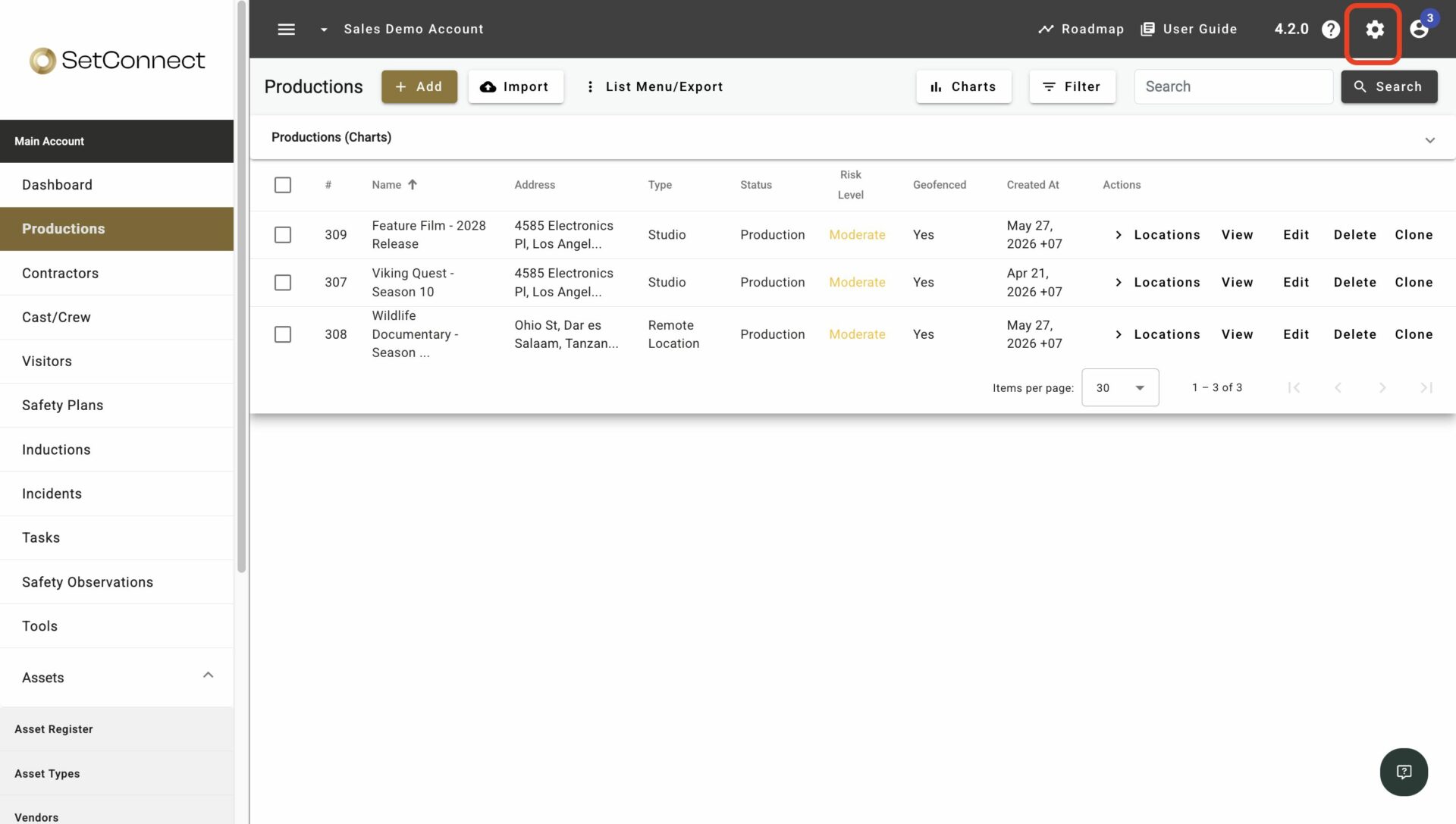
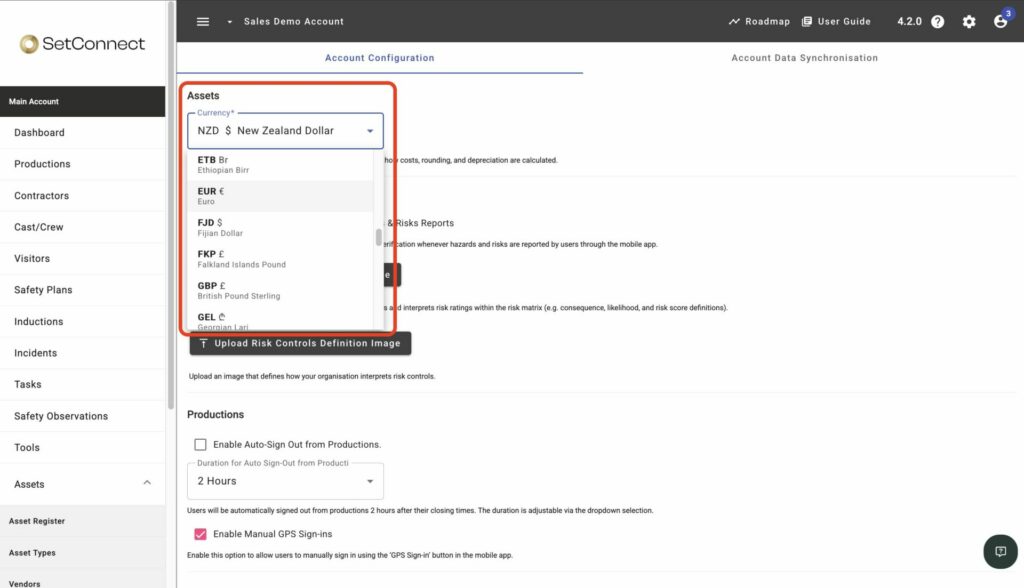
Select the Settings icon, click Configuration, then choose the currency you want from the Currency dropdown. This only changes the currency an asset was bought in — it doesn’t affect any other currency fields in SetConnect.
At a glance
| For | Company administrators |
| Platform | Web Portal |
| Applies to | All regions |
| Time to Read | About 1 minute |
| You’ll learn how to | • Open Configuration settings. • Change the currency an asset was bought in. |
Before you begin
Make sure you:
- Have permission to manage company Configuration settings.
Step-by-step guide
Step 1. Select Settings
Select the Settings icon.
Step 2. Open Configuration
Click Configuration.
Step 3. Choose the currency
From the Currency dropdown, select the currency you want to use.
Result
You’ll know the task is complete when the currency an asset was bought in displays as the newly selected currency on that Asset’s record.
Note
The Currency setting only changes the currency an asset was bought in. It doesn’t affect any other monetary field on the Asset record, or currency shown elsewhere in SetConnect.