
Restore access by checking the asset’s visibility flag, production link and archive status.
An asset usually doesn’t appear in the Mobile App because it isn’t marked visible on mobile, isn’t linked to the production you’re viewing, or has been archived.
At a glance
| For | Company administrators, production managers |
| Platform | Web Portal |
| Applies to | All regions |
| Time to Read | About 2 minutes |
| Checks in this article | • The asset isn’t market Visible on the Mobile app. • The asset isn’t linked to your current production. • The asset has been archived. |
Checks to complete
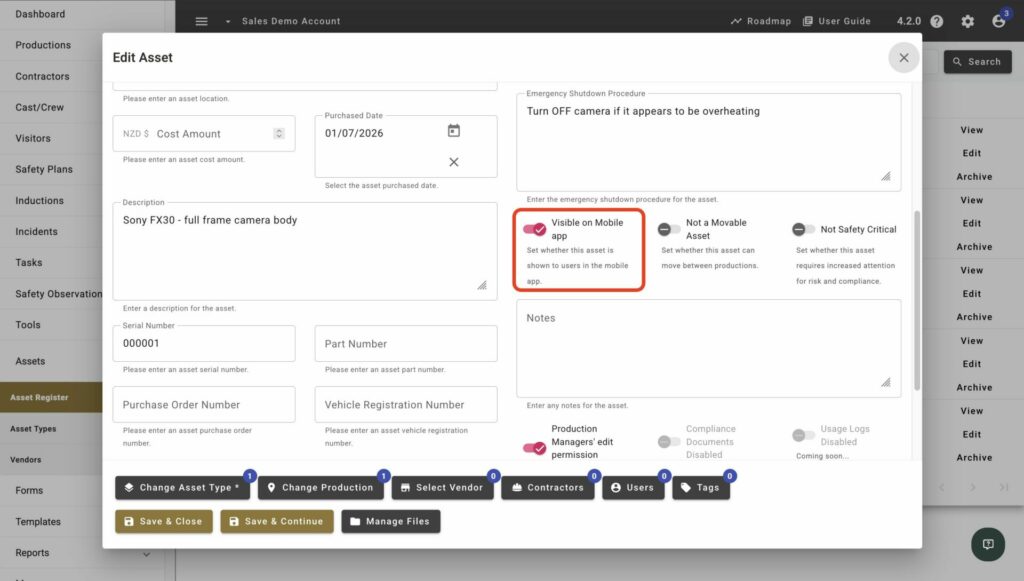
The asset isn’t marked Visible on Mobile app
Open the asset in the Web Portal, then turn on Visible on Mobile app from its Details tab.
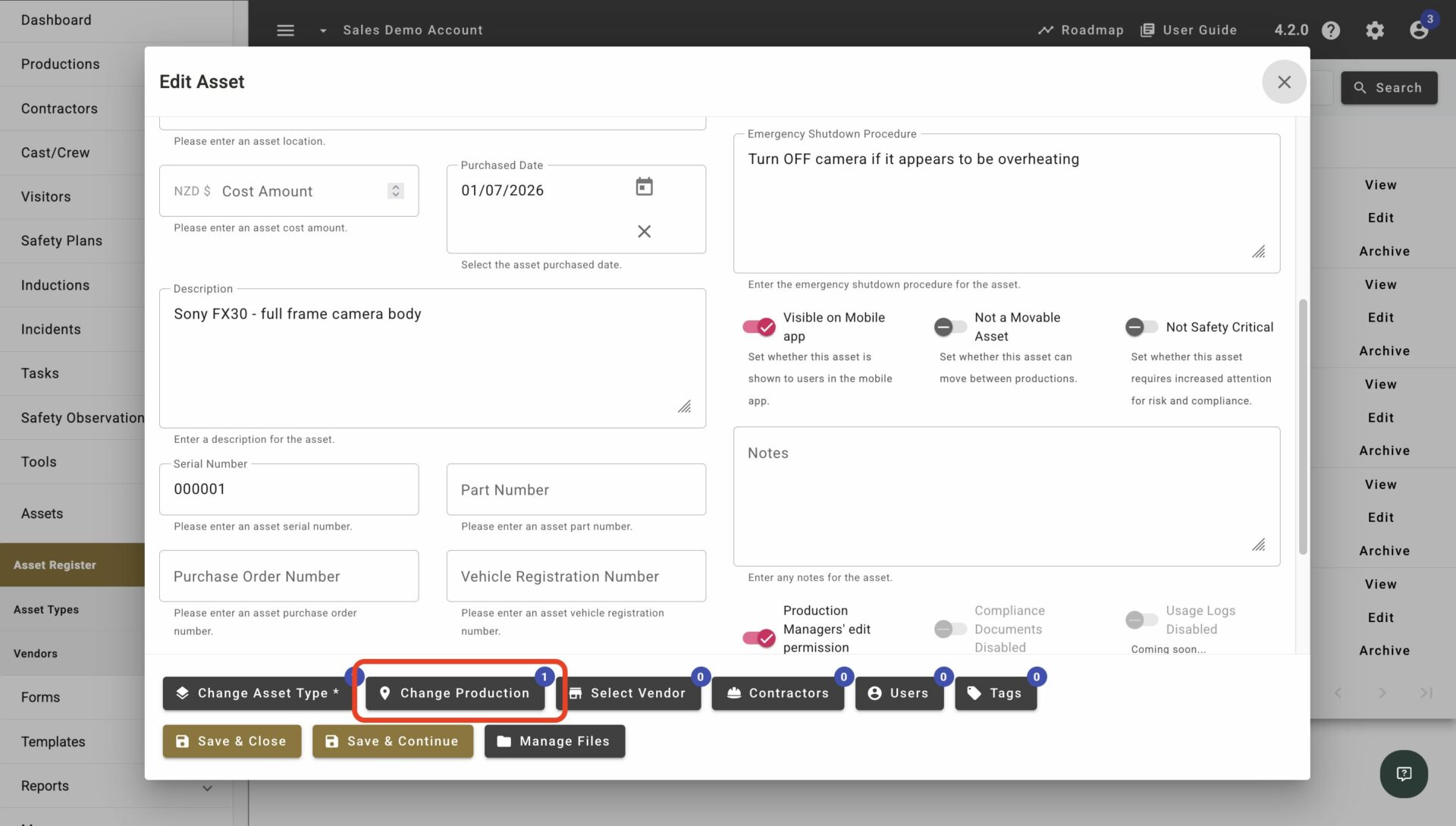
The asset isn’t linked to your current production
The Mobile App asset list is scoped to your currently selected production. Switch productions using the production selector, or link the asset to the production you’re working from.
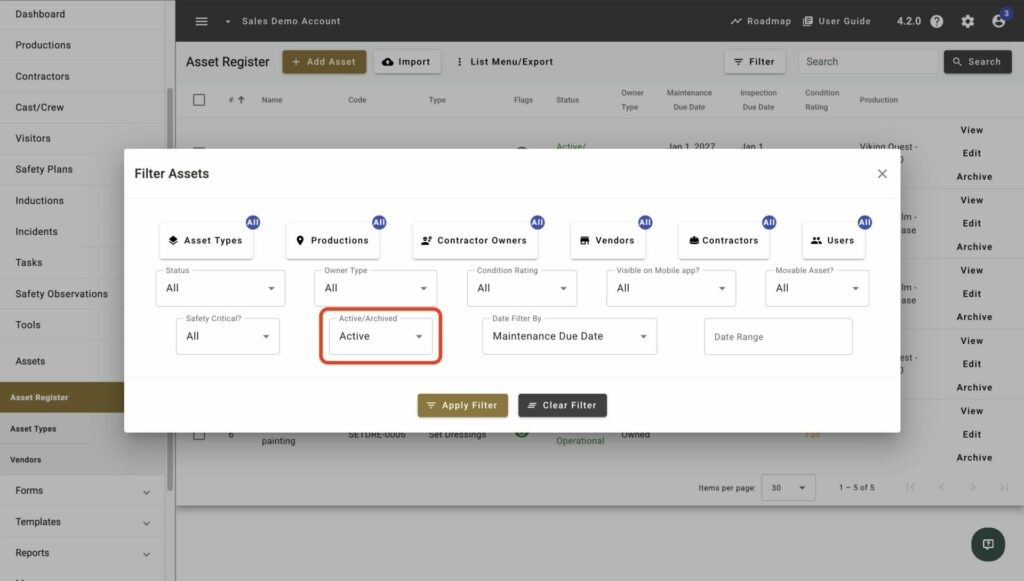
The asset has been archived
Open Filter in the Web Portal, enable the archived option, then select Restore if the asset shouldn’t be archived.
Result
You’ll know it’s fixed when the asset appears in the Mobile App’s asset list for the correct production.