
Control what each person in your account can see and do by grouping individual permissions into roles you create and assign.
Give each person in your account the access their work needs with role-based access control (RBAC). Rather than a single admin permission you can build roles that match how your organisation works, such as “Production/Location Supervisor” or “Read Only Auditor”, tick the permissions each role needs, then assign your cast/crew to them.
At a glance
| For | Company Administrators and anyone holding the RBAC Roles permission |
| Platform | Web Portal – Roles and permissions are not managed in the mobile app. |
| Applies to | All regions |
| Time to Read | About 2 minutes |
| You’ll understand | • What a permission is. • What a role is. • How roles bring permissions together. • Which two built-in roles every account has, and why you can’t change them. |
What is a permission?
Every permission pairs one feature, such as Incidents or Forms, with an action:
- Create – Add a new record.
- View – See the list and open existing records.
- Edit – Change an existing record.
- Delete – Remove an existing record.
Ticking Edit or Delete on a feature automatically ticks View too, because you can’t change a record you can’t see.
Note
You can’t restrict a role to one production/location or a group of productions/locationss. Permissions apply across all productions in your account.
What is a role?
A role is a collection of permissions that controls what someone can see and do in SetConnect.
For example, you might create a Production/Location Supervisor role that lets someone edit productions, view incidents and complete safety meetings without giving them access to account settings or other administrative areas.
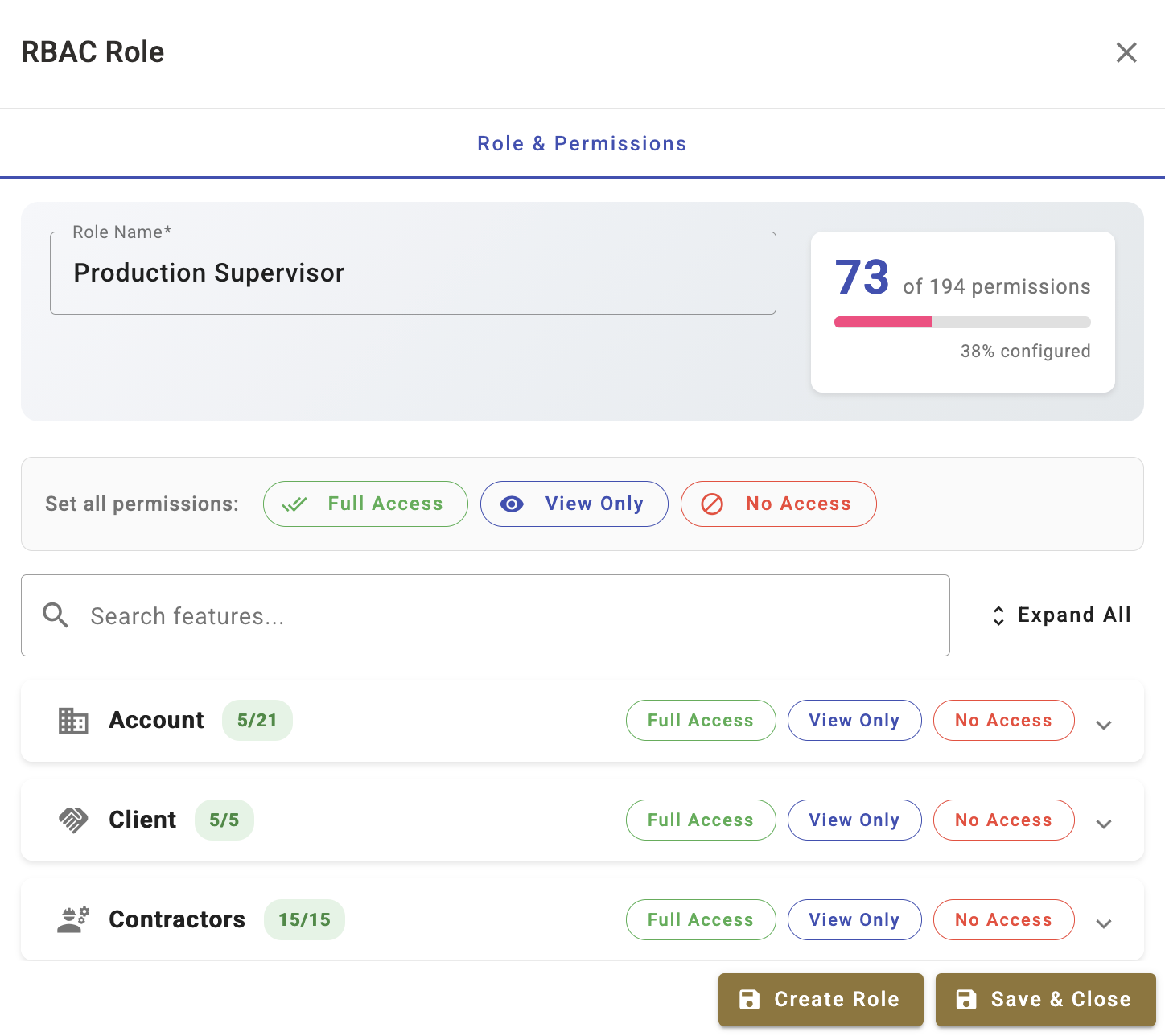
How roles bring permissions together
Every account starts with two built-in roles.
- Administrators has full access to everything your subscription includes.
- Users is the baseline role every new cast/crew receives, and it grants no portal features on its own except for the profile button where they can view their own information. SetConnect manages both, so you can’t rename them, change their permissions or delete them.
Every new user starts with one built-in base role, either an Administrator or a User, and can then be assigned any number of custom roles. Their access is combined across all of the roles they hold.
Next recommended step
Create your first custom role so your team can work in the portal.
Next article: How do I create a custom role?