
Assign roles from the role itself, an cast/crew’s profile or the cast/crew list, depending on what you need to update.
You can assign roles in three ways: from a role, from an cast/crew profile, or in bulk from the cast/crew list.
At a glance
| For | Company Administrators and anyone with View and Edit on RBAC roles |
| Platform | Web Portal – Roles and permissions are not managed in the mobile app. |
| Applies to | All regions |
| Time to complete | About 3 minutes |
| You’ll learn how to | • Assign cast/crew from a role • Manage roles from an cast/crew’s profile • Bulk-assign roles from the cast/crew list |
Before you begin
To assign roles from RBAC Roles, you need View and Edit access for RBAC roles.
To manage roles from an cast/crew’s profile, you also need permission to edit cast/crew, and the cast/crew must already exist in your account.
To use the bulk option from the cast/crew list, you need permission to view cast/crew.
Step-by-step guide
Assign Cast/Crew from a role
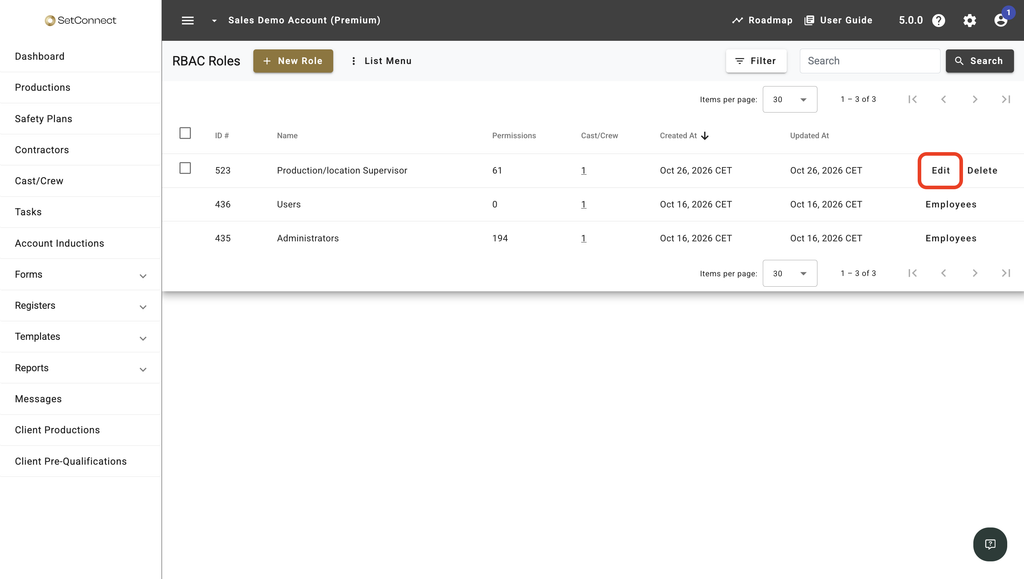
1. Open RBAC Roles from the settings (gear) icon, then select Edit in the role’s row. For Administrators and Users this button reads Employees.
2. In the dialog, select the Cast/Crew tab.
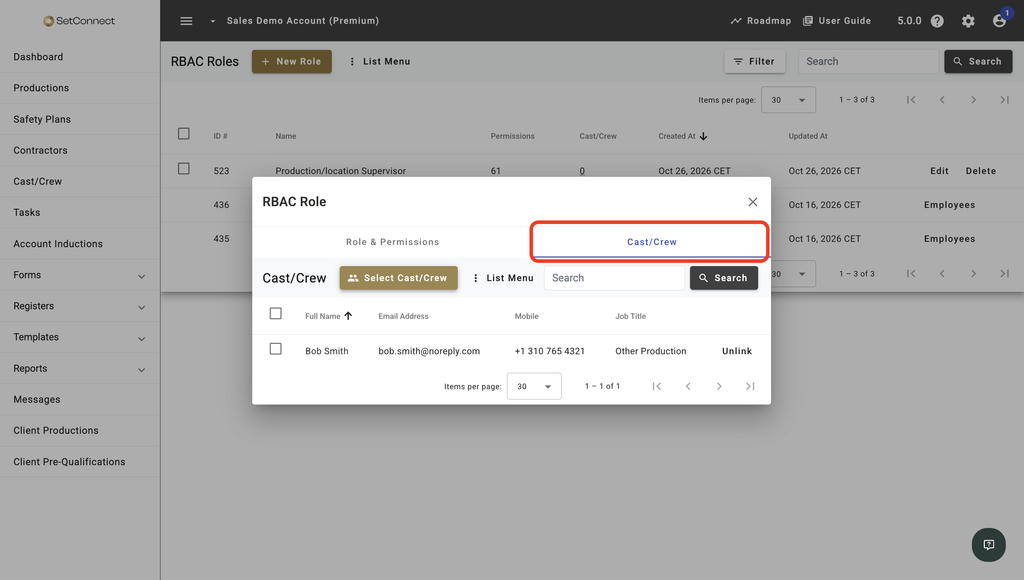
3. Select Select Cast/Crew, choose the people, then confirm your selection.
4. Close the dialog with the X in its top corner.
Manage roles from an cast/crew profile
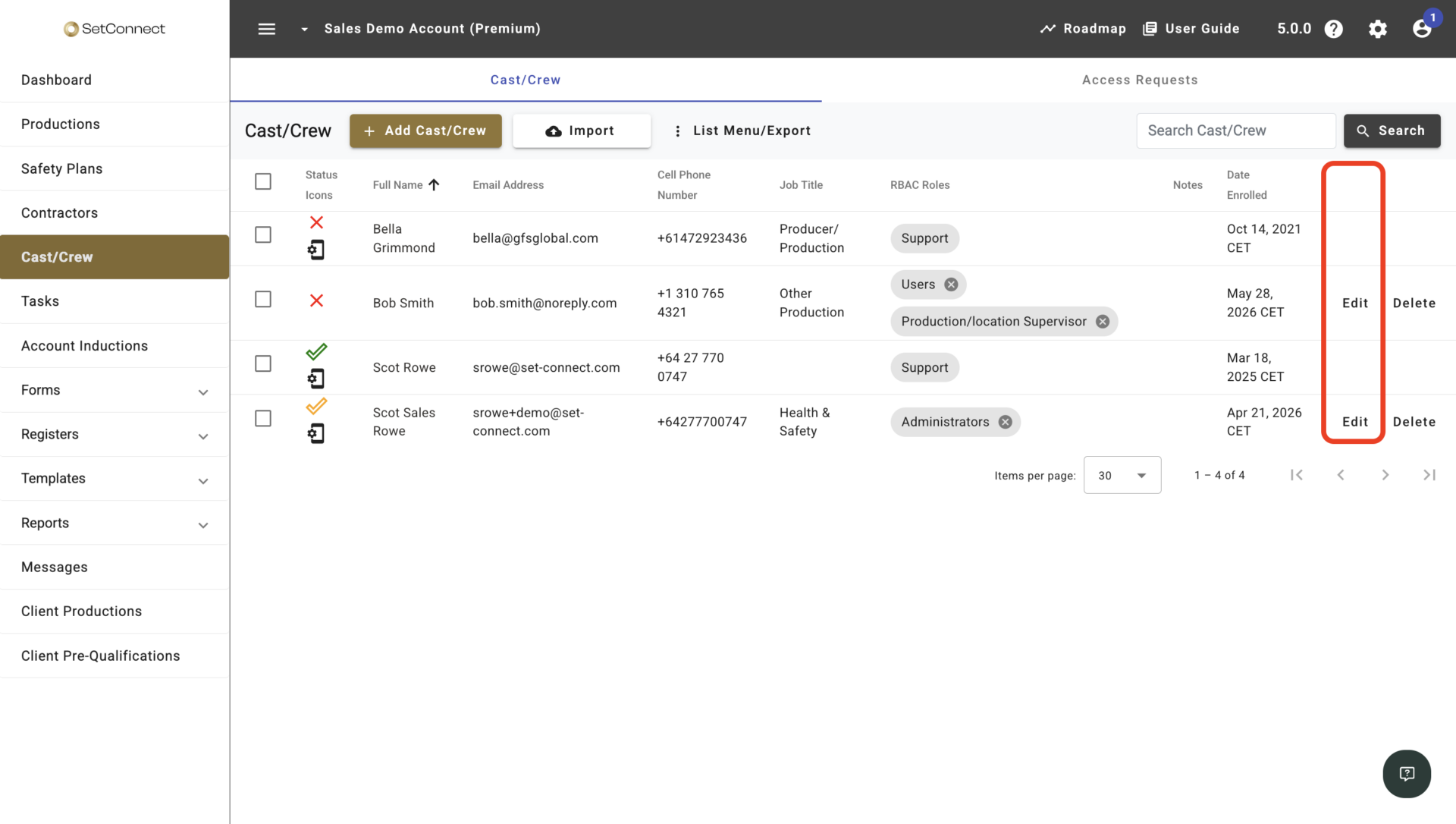
1. Select Cast/Crew in the left menu, find the person, then select Edit at the end of their row. Selecting their name instead opens a public profile with no role settings.
2. On their cast/crew page, select RBAC Roles in the right-hand menu.
3. Select Select RBAC Roles, choose the roles they need, then confirm.
Bulk-assign roles from the Cast/Crew list
1. Select Cast/Crew in the left menu.
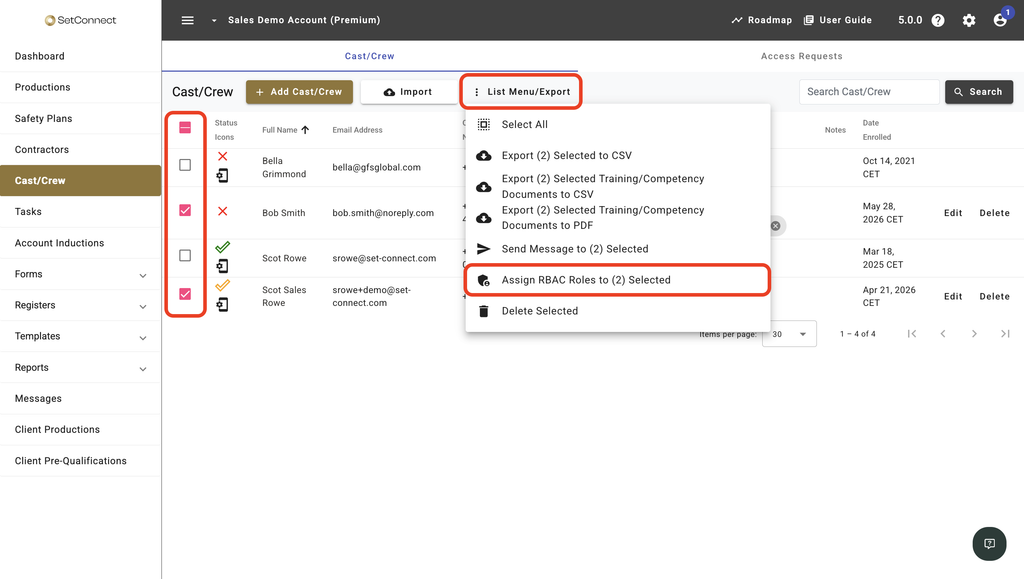
2. Select the checkbox beside each person you want to update.
3. Select List Menu/Export, then choose Assign RBAC Roles to (N) Selected.
4. Choose the roles to add, then confirm. Everyone keeps the roles they already have.
Result
The cast/crew appears on the role’s Cast/Crew tab, and the role appears in the cast/crew’s RBAC Roles view.
Their access updates automatically the next time they use SetConnect. They don’t need to sign out and back in.
See How will the new roles and permissions affect my existing users?
Common issues
If there’s no Edit button in the cast/crew list, you don’t have permission to edit cast/crew. Assign the cast/crew from the role instead.
If RBAC Roles doesn’t appear on the cast/crew page, you don’t have View access for RBAC roles. If you can see it but there’s no Select RBAC Roles button, you have View but not Edit.
If the cast/crew has only a Support role, they’re SetConnect support staff. SetConnect manages this access directly, so you can’t change it.
Next recommended step
Once you’ve assigned roles, you may need to update them later as someone’s responsibilities change.
Next article: How do I give an cast/crew administrative access?