
Give a trusted colleague full access to your SiteConnect account by adding them to the built-in Administrators role.
Add the cast/crew to the built-in Administrators role on the RBAC Roles page. Their Users role drops off at the same time, because nobody can hold both.
At a glance
| For | Company Administrators and anyone with View and Edit on RBAC roles. |
| Platform | Web Portal – Roles and permissions are not managed in the mobile app. |
| Applies to | All regions and subscription tiers |
| Time to complete | About 2 minutes |
| You’ll learn how to | • Add someone to the built-in Administrators role. • Understand what changes for them when you do. |
Before you begin
You need View and Edit access for RBAC Roles.
Caution
Administrators have full access to everything included in your subscription, including RBAC Roles. They can change role permissions and who holds them, including other Administrators, so only give this access to people you trust to manage the whole account.
Step-by-step guide
Step 1: Open RBAC Roles
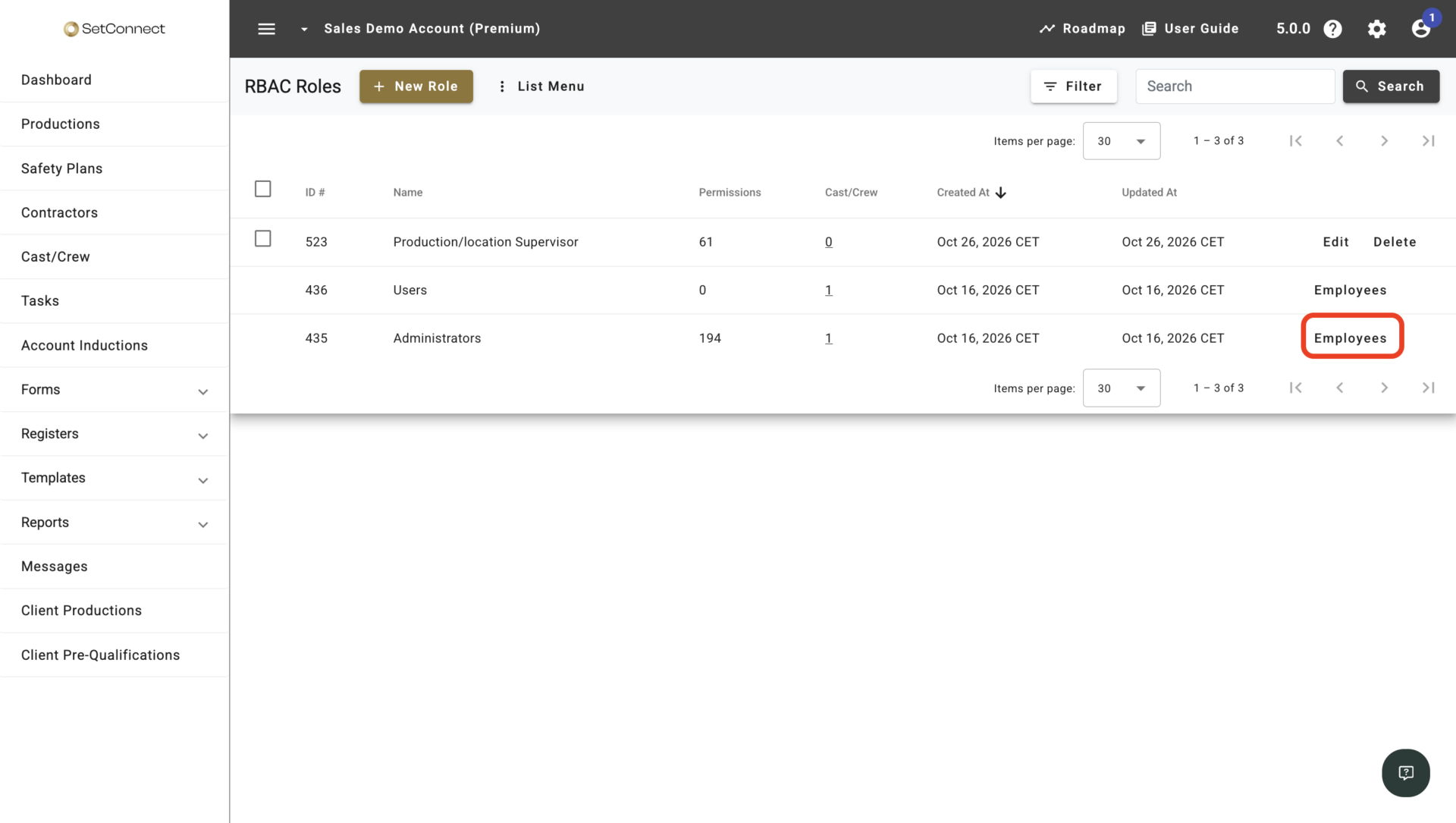
Select the settings (gear) icon in the top bar, then select RBAC Roles.
Step 2: Open the Administrators role
In the Administrators row, select Employees. Built-in roles show Cast/Crew instead of Edit.
Step 3: Open the Cast//Crew tab
In the dialog, select the Cast/Crew tab.
Step 4: Select the Cast//Crew
Select Select Cast/Crew, choose the person you want to give Administrator access to, then confirm your selection.
Step 5: Close the dialog
Select the X to close the dialog.
You can also assign Administrators from an cast/crew’s profile or in bulk from the cast/crew list. See How do I assign roles to cast/crew?
Result
The cast/crew moves from Users to Administrators and appears on the role’s Cast/Crew tab.
Their access updates automatically the next time they use SiteConnect. They don’t need to sign out and back in.
Administrator access covers everything included in your SiteConnect subscription.
Common issues
There’s no Select Cast/Crew button
You have View access for RBAC Roles, but not Edit. Ask someone with Edit access to add the cast/crew.
You want to give someone broad access, but not everything
The built-in Administrators role can’t be edited. Create a custom role instead so you can choose the permissions they need.
SiteConnect asks you to assign another Administrator first
Add the new person to Administrators using the steps above, then try your original change again.
Next recommended step
If someone no longer needs full Administrator access, update their roles so they only keep the access their work requires.
Next article: How do I assign roles to cast/crew?