
Match access to the roles people do, so everyone can work in SetConnect without holding more permissions than they need.
Plan SetConnect access around the jobs people do, rather than individual cast/crew. Before you open RBAC Roles, consider which features each job role needs access to and whether they need to create, view, edit or delete records. This helps you give people the access they need without adding permissions they don’t use.
At a glance
| For | Company Administrators |
| Platform | Web Portal |
| Applies to | All regions |
| Time to Read | About 3 minutes |
| You’ll learn how to | • Plan custom roles around jobs, not people. • Decide which actions each job needs. • Protect administrator-level access. |
Start with the work people do
List the main jobs or responsibilities in your organisation and think about what each one needs to do in SetConnect.
For example, a Proeduction/Location Supervisor may need to manage incidents, forms and production activity, while someone responsible for health and safety may need broader access to registers, reports and compliance information.
Create roles around these common responsibilities rather than individual cast/crew. If several people do the same work, they can usually share the same role.
Give people only the access they need
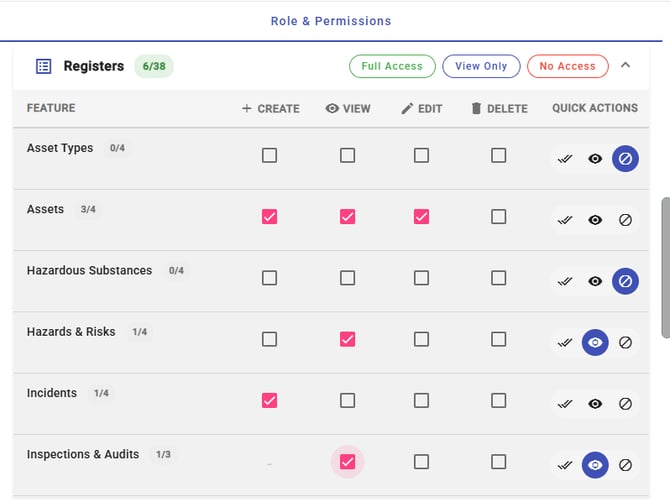
For each responsibility, decide which features they need access to and whether they need to Create, View, Edit or Delete records.
Avoid giving Edit or Delete access by default. Start with the permissions someone needs to do their work and add more later if their responsibilities change.
Tip
Giving someone less access to begin with is usually easier to manage than removing unnecessary access later.
Remember that Create can be granted without View. For example, someone could be allowed to report an incident without being able to browse the full incident register.
Use custom roles together where it makes sense
Every new cast/crew receives the built-in Users role automatically, which doesn’t provide access to Web Portal features on its own.
Add custom roles for the responsibilities they hold. A person can have more than one custom role, and SetConnect combines the permissions from all of their roles.
This means you don’t need to create a new role for every possible combination of responsibilities.
Plan around the permissions available to you
You can only add permissions for features included in your SetConnect subscription. Features that aren’t included won’t appear in the role editor.
Protect access to roles and settings
Be careful when deciding who can manage roles themselves.
SetConnect prevents changes that would leave your account without anyone in Administrators or without anyone able to edit RBAC roles.
Caution
Treat Edit access for RBAC Roles as administrator-level access. Someone with this permission can change roles and may be able to give themselves other permissions available in your subscription.
Next recommended step
Once you’ve agreed what each role needs, you’re ready to create them in SetConnect.
Next article: How do I create a custom role?