
Understand how SetConnect permissions are organised, what each action allows and which permissions are available with your subscription.
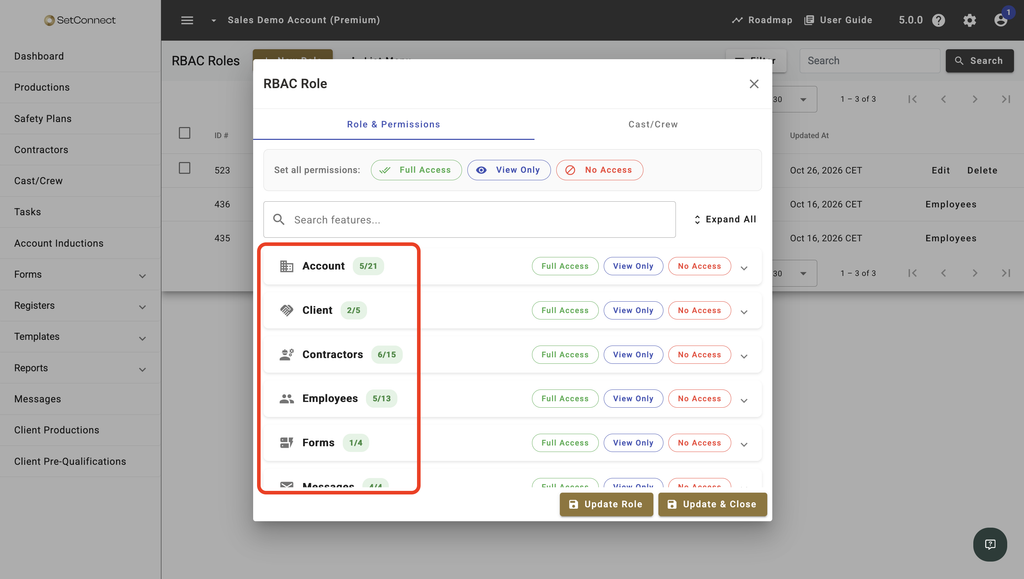
SetConnect groups permissions into categories such as Account, Registers, Productions and Templates. The permissions you can select depend on your subscription, and some features have additional access requirements to consider when building a role.
If you’re new to RBAC, start with What are roles and permissions in SetConnect? before using this article as a reference.
At a glance
| For | Company Administrators |
| Platform | Web Portal |
| Applies to | • All regions • All subscription tiers |
| Time to Read | About 3 minutes |
| You’ll understand | How permissions are grouped, what your subscription includes and which permissions have additional requirements |
How permissions are organised
SetConnect groups permissions into 13 categories covering 59 features.
Permissions by category
| Category | Features |
| Account | 6 |
| Client | 2 |
| Contractors | 6 |
| Cast/Crew | 4 |
| Forms | 1 |
| Messages | 1 |
| Networked | 2 |
| Registers | 10 |
| Reports | 2 |
| Safety Plans | 1 |
| Productions/Locations | 17 |
| Tasks | 1 |
| Templates | 6 |
Productions is the largest category. It includes the production details page, Noticeboard and the sections available within an individual production.
Registers contains the account-wide registers available from the main navigation.
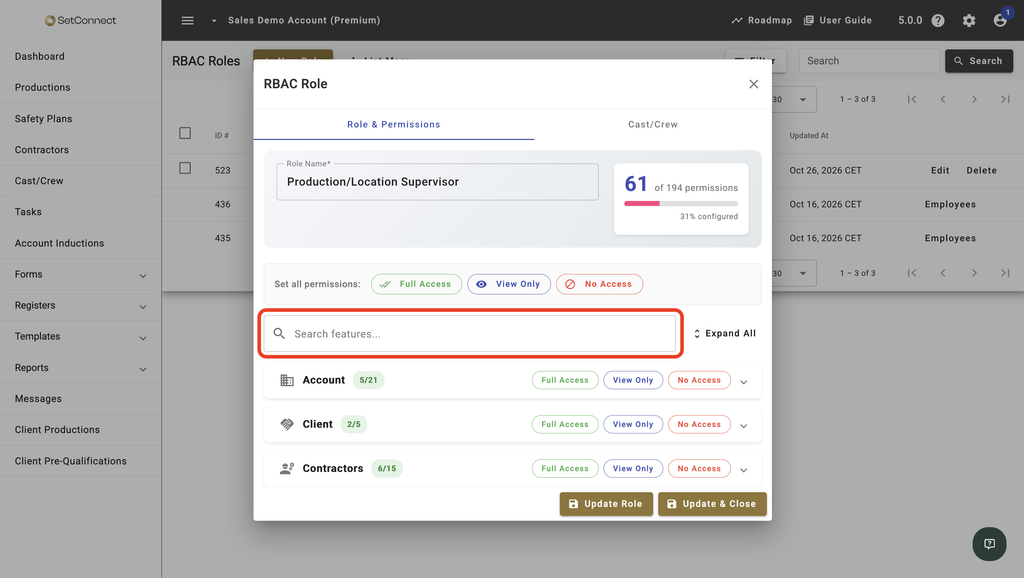
If you’re looking for a particular feature while building a role, use Search features… to narrow the list.
Which permissions does my subscription include?
The permissions available in the role editor depend on your SetConnect subscription. Features outside your subscription don’t appear as permissions you can select.
The current permission totals are:
| Subscription | Available permissions |
| Free | 37 |
| Contractor | 53 |
| Premium | 194 |
Note
The Contractor subscription adds asset management permissions, including Registers: Assets, Registers: Asset Types and Registers: Vendors.
You may also see Productions: Assets, but this permission isn’t usable on the Contractor subscription because Contractor doesn’t include access to individual productions. Manage assets from Registers: Assets instead.
Important limitations
Permissions apply across the whole account, so anyone with Productions: View can open every production, not just one production or a selected group. See Can I restrict a role to specific productions?
Working in a production section usually requires two permissions: Productions: View to open the production, plus the matching Productions permission, such as Productions: Incidents.
Record types such as Incidents and Assets appear under both Registers and Productions as separate permissions, so access to one doesn’t grant access to the other. Tools, Asset Types and Vendors sit under Registers only.
These permissions mainly control the Web Portal. The Mobile App checks Cast/Crew and Cast/Crew: Training & Competencies to decide whether its cast/crew section appears in the settings menu. The Kiosk App doesn’t check RBAC permissions.
Productions: Specified Systems doesn’t affect the Web Portal or Mobile App. It is used for direct API connections, such as an integration built by your IT team.
Next recommended step
If you’re setting up access for people who work within productions, check which permissions they need to open a production and use its sections.
Next article: What permissions does someone need to work within a production?