
A Job Safety Analysis outlines high‑risk work activities, associated hazards, and the control measures required to keep workers safe. You can create and manage a Job Safety Analysis directly from the SetConnect mobile app while on Production/Location.
Follow the steps below to create a Job Safety Analysis document using the SetConnect mobile app.
1. Start the Creation Process
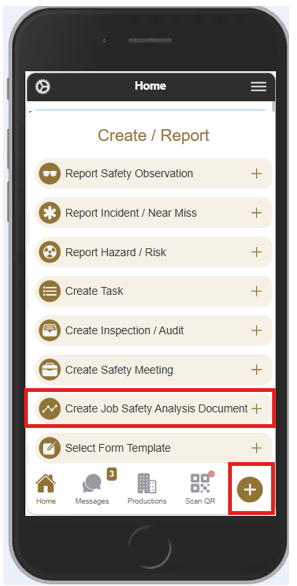
2. Use the Wizard Creator
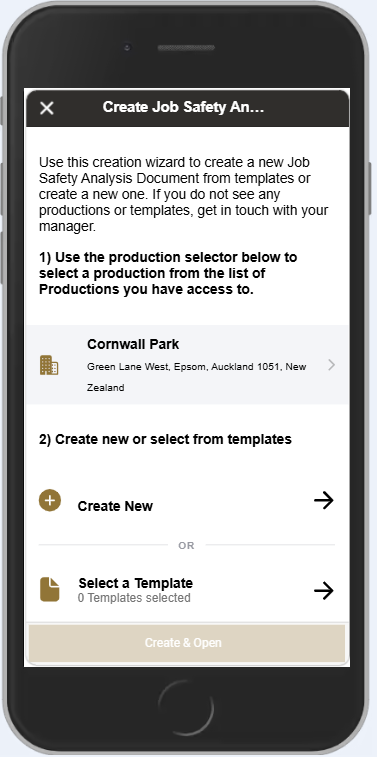
The Wizard Creator will open and guide you through the setup.
-
- Select the Production/Location you want the Job Safety Analysis to apply to.
- Choose one of the following:
- Create New – start a blank document
- Select a Template – choose from your organisation’s pre‑built templates
- Once selected, tap Create & Open to proceed.
If you selected a templated version, the app will ask you to confirm whether you want to use that template. Tap Yes to proceed. The template will then open as a new Job Safety Analysis document, pre‑filled with the information from the template. From here, you can review the content and sign off if no further changes are required.
If you chose Create New, follow the instructions below to build your Job Safety Analysis from scratch.
3. Enter the Required Details
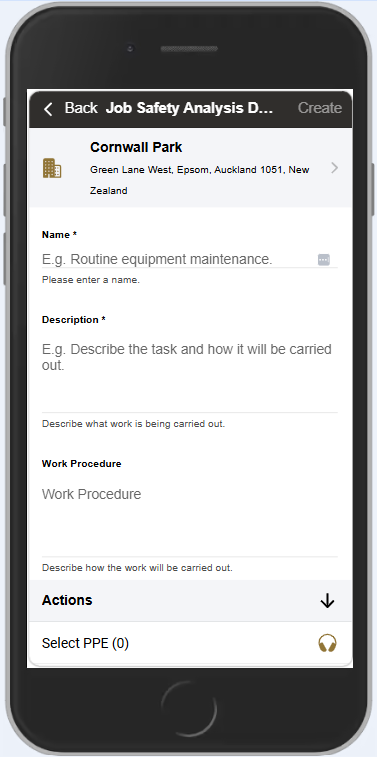
You will now enter the core information for the Job Safety Analysis. The following fields may appear depending on your configuration:
Compulsory Fields
- Name & Description – clearly describe the task or activity
- Approval Section – you must select:
- Approver
- Authoriser
- Supervisor
Additional Sections
- Work Procedure – outline the general method of work
- Actions – select any applicable items:
- PPE
- Work Permits
- Tools
- Hazardous Substances
- Assignees
- The creator is automatically added as an assignee
- You may add additional assignees as needed
- Other Actions
- Safety Practices
- Training & Qualifications
- Duties
- Certificates of Competency
- Emergency Procedures
- Codes of Practice
- Maintenance Checks
Once all required information is entered, tap Create & Open at the bottom of the screen.
4. Add Workflow Steps, Files, Hazards & Risks
After creation, the document will open in Edit mode. If the app fails to open into Edit mode click on Edit in the top left hand corner of your screen.
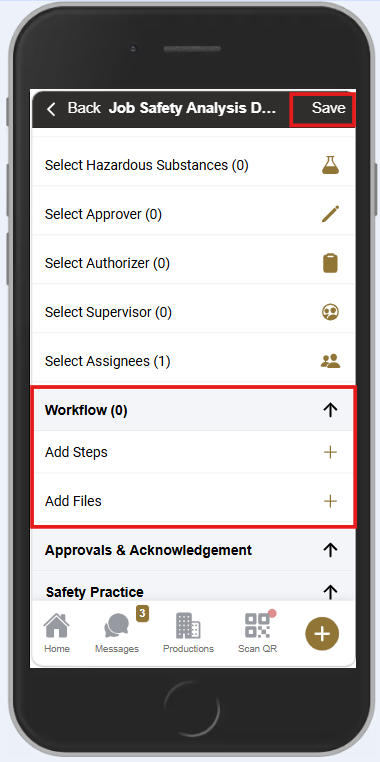
You can now add workflow steps by scrolling down to the Workflow Steps section.
Here you can:
- Add Workflow Steps
- Attach Files
- Add Hazards & Controls to each step
Creating Workflow Steps
Break the task into clear, sequential steps. For each step, you can:
- Select hazards/risks from the Production Hazard Register, or
- Create new hazards specific to the task
- Add the appropriate control measures
This ensures each step is risk‑assessed and compliant.
6. Saving Your Progress
You can save the Job Safety Analysis at any time.
- Tap Save in the top‑left corner.
- Saving frequently is recommended, especially for longer documents.
7. Worker Sign‑Off
Once the Job Safety Analysis has been:
- Approved
- Authorised
- Acknowledged
…assignees will be able to sign off.
Assignees cannot sign off until the Approver, Authoriser, and Supervisor have all completed their sign‑off.
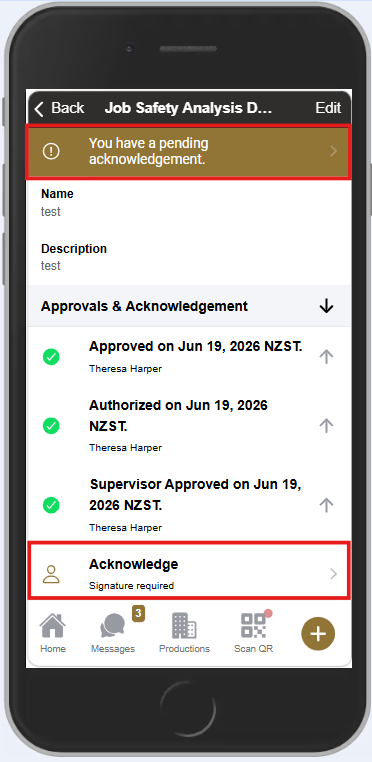
Once the Job Safety Analysis has been fully approved, authorised, and acknowledged, a gold notification banner will appear at the top of the document. Tap this banner to open the Acknowledgement section. Click on the Acknowledge field and from here, a signature field will appear, allowing you to complete your sign‑off. All signatures are timestamped and stored for audit purposes.
All Job Safety Analysis documents created in the mobile app automatically sync to the SetConnect web portal, where administrators can view, review, export or manage them.
If you edit an existing Job Safety Analysis , the system will automatically create a new version.
Each new version must be:
- Approved
- Authorised
- Acknowledged
…before assignees can sign off again.